iPhone · Android · iPad
How to Make Minecraft Thumbnails on Your Phone
By the MCRender team · Updated · 5 min read
Yes, you can make a Minecraft thumbnail entirely on your phone. Open mcrender.net in Safari or Chrome. There's no app to install and you don't need a PC. Pose your Minecraft skin in 3D, add mobs, a backdrop and a title, export a 1280×720 PNG, and upload it in the YouTube Studio app.
Option 1: your skin, posed (free)
The quickest thumbnail is your own character in a pose that matches the video. You don't need an account for your first one.
- 1
Pick a pose
Browse the pose library on mcrender.net (sitting, pointing, fighting, shocked) and tap one.
- 2
Type your username
Enter your Java or Bedrock name in the player name box at the bottom. Your skin loads onto the 3D character.
- 3
Download
Tap the download button. The PNG saves to your phone, ready to use as a thumbnail or drop into one.
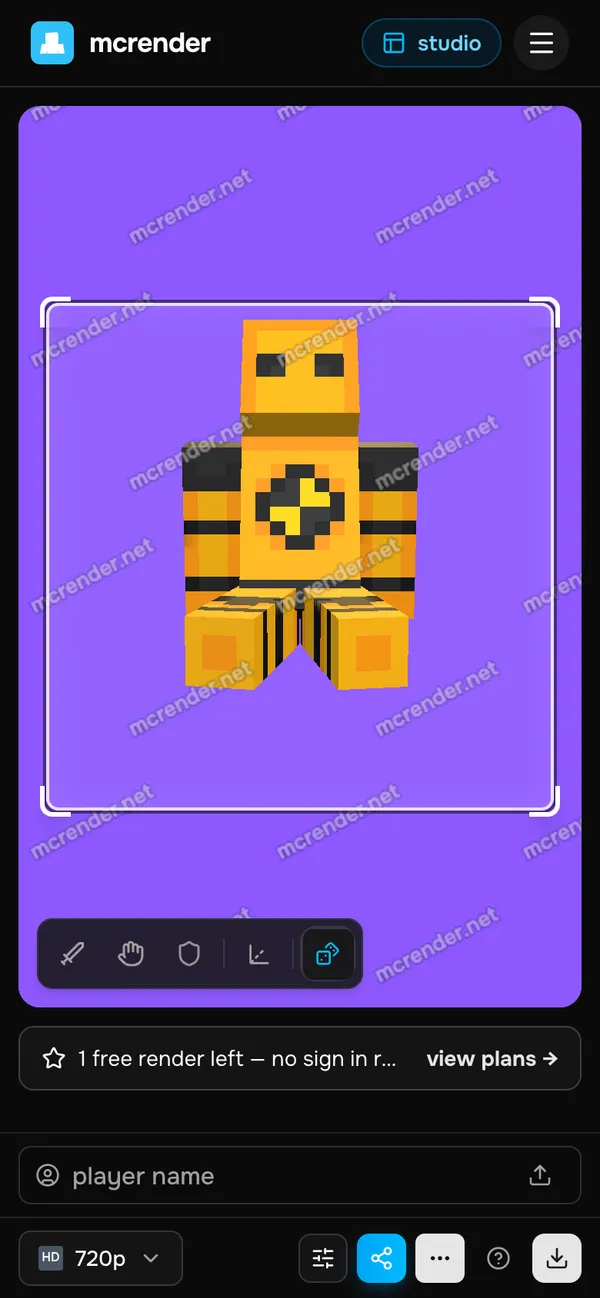
Free renders carry a small mcrender.net watermark: 1 render a month without an account, 2 renders with a free one. Hobby removes the watermark, adds transparent backgrounds and gives 50 HD renders a month for $9.99/month. Phones show a lighter preview so it stays smooth; the character and pose are the same.
Option 2: a full thumbnail in the editor
For a complete thumbnail (character, mobs, a build, a title and effects on one canvas), use the Thumbnail Editor. It was laid out for small screens: panels slide up from the bottom, you pinch to zoom and drag layers with a finger.
- 1
Open the Thumbnail Editor
Go to mcrender.net/thumbnails in Safari or Chrome and start a design. On a phone the tools move to a bar along the bottom of the screen: Assets, Text, Backdrop, Layers and Uploads.
- 2
Add a backdrop
Tap Backdrop for a Minecraft sky, scenery or a grid, or Uploads to use a screenshot from your camera roll.
- 3
Add your player and mobs
Tap Assets, then Mobs. Player adds a posed character you can put your own skin on; below it are 700+ mobs, plus items, blocks and HUD pieces.
- 4
Write the title
Tap Text and pick a Minecraft-style 3D title or a bold YouTube font, then type your words.
- 5
Export
Tap the download button at the top right and choose PNG 720p (1280×720, YouTube's size). The file saves to your phone.
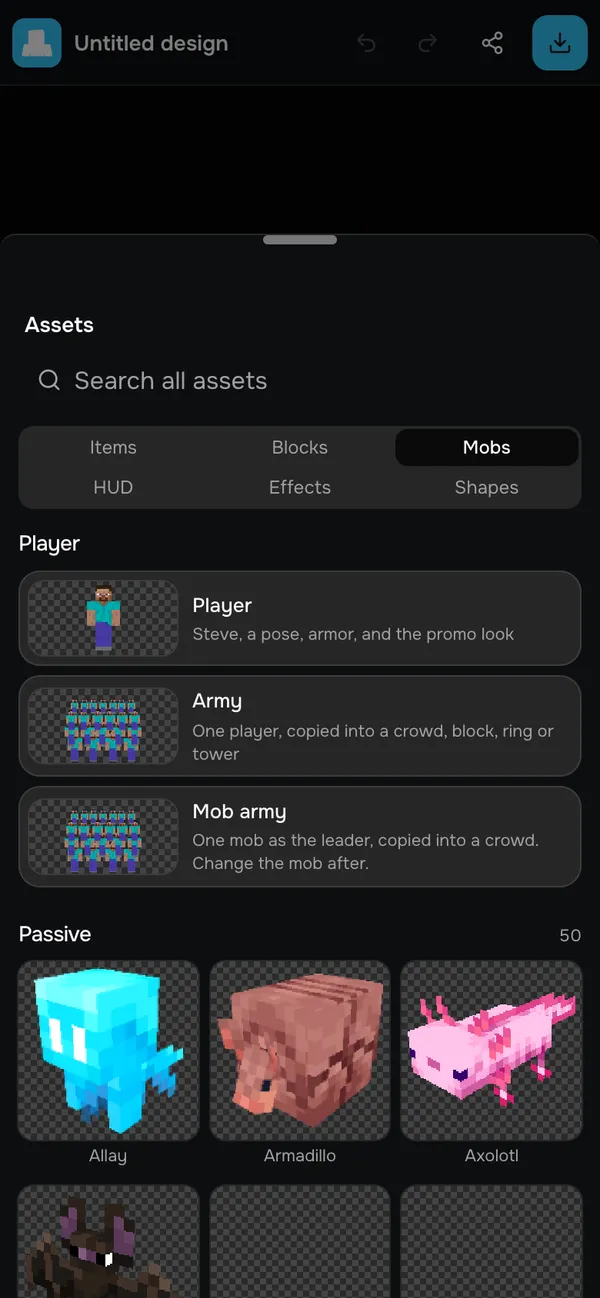
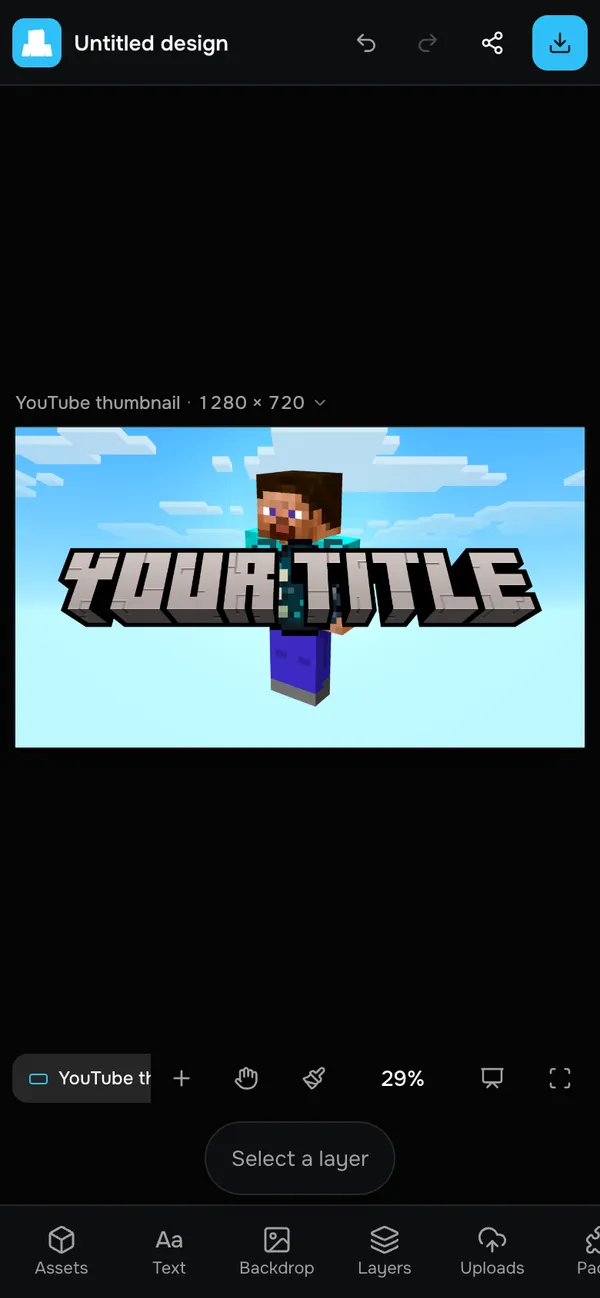
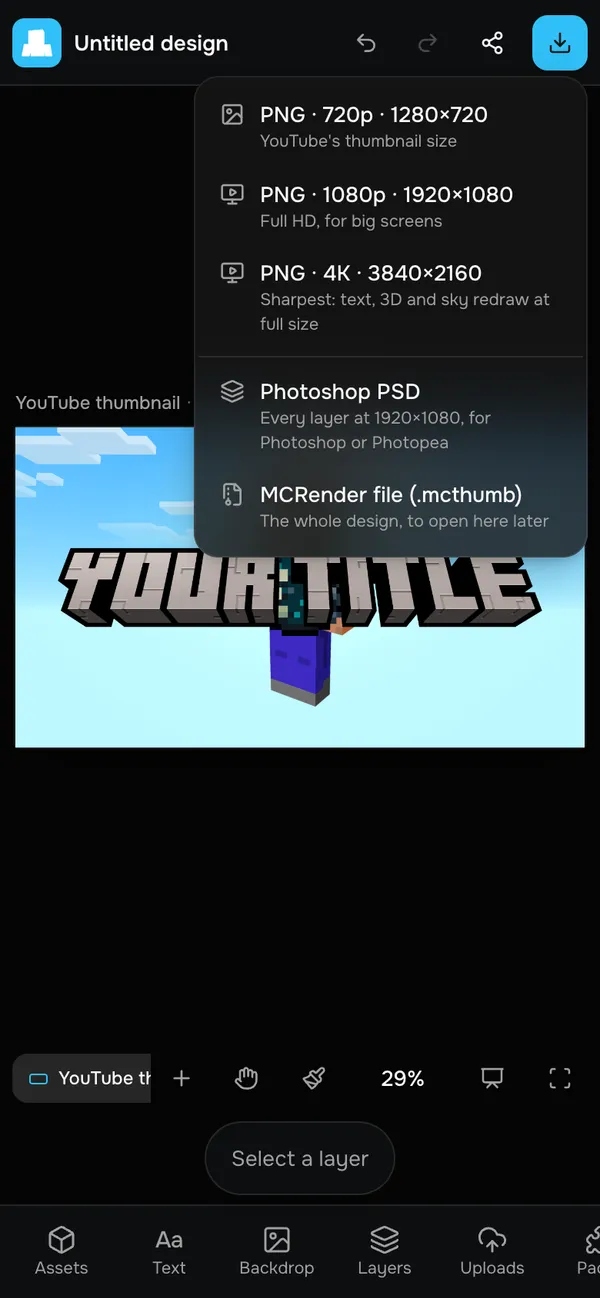
The editor is part of Creator ($19.99/month) and comes with a free 24-hour trial, no card needed. Trial exports are watermarked and go up to 1080p. Designs are saved to your account, so you can start on your phone and finish on a computer.
Open the Thumbnail EditorOption 3: start from a template
Templates are finished thumbnails where you only change the players and the words. Open one, sign in, type your username next to each player and edit the title. Templates marked Free download at 1280×720 with a free account.
- Survival thumbnails
- 100 Days thumbnails
- Hardcore thumbnails
- Challenge thumbnails
- Manhunt thumbnails
- Lucky Block thumbnails
Upload it from your phone
- 1
Put the PNG in your photos
On iPhone, Safari saves downloads to Files › Downloads: open the image and tap Share › Save Image. On Android it's already in Downloads, which the photo picker can see.
- 2
Open YouTube Studio
In the YouTube Studio app, tap Content and pick your video (or upload a new one).
- 3
Change the thumbnail
Tap the pencil to edit, tap the thumbnail, then Custom thumbnail, and choose your image. Save.
YouTube's thumbnail rules
- 1280×720 pixels (16:9) is the recommended size; the minimum width is 640.
- JPG, PNG or GIF, under 2 MB. MCRender's 720p PNG is the right export.
- Custom thumbnails need a verified YouTube account (a one-time phone check in YouTube settings).
Make it readable on a phone screen
Most people will see your thumbnail on a phone too, often at the size of a stamp. What works there:
Three to five words, big. If you can't read the title with the phone at arm's length, nobody in the feed will.
One subject, large. Your character and one thing from the video. A wide scene with a tiny player disappears.
Outline the character. A light outline or glow separates a dark skin from a dark background.
Check it in the feed. The editor's Preview has a Mobile view that shows your thumbnail in a phone-sized YouTube feed next to other videos.
Questions
- Is there a Minecraft thumbnail maker app?
- You don't need one. MCRender runs in your phone's browser (Safari on iPhone and iPad, Chrome on Android), so there is nothing to install and your designs are the same ones you see on a computer.
- Can I make a Minecraft thumbnail without a PC?
- Yes. Posing your skin, building a full thumbnail, exporting the PNG and uploading it in the YouTube Studio app can all be done on a phone.
- Is it free?
- Posing your skin is free: 1 render a month without an account and 2 renders with a free account, with a small watermark. Featured templates are free with an account. The full Thumbnail Editor is part of Creator ($19.99/month) and has a free 24-hour trial with no card.
- Does it work on an iPad or tablet?
- Yes. A tablet gets more room for the canvas, and with a keyboard attached the editor's shortcuts work too.
- Can I make a Shorts thumbnail on my phone?
- Yes. In the editor, change the canvas format to Shorts (9:16), or add it as a second size of the same design so the YouTube and Shorts versions stay together.
- Why does YouTube say my thumbnail is too big?
- YouTube only accepts thumbnails under 2 MB. Export at 720p (1280×720), which is the size YouTube recommends, rather than 1080p or 4K.